Volt AI
Multi-provider AI assistant integrated across the entire platform.
TL;DR -- Volt AI is a built-in assistant that supports 13 AI providers and 71 tools. Each team configures its own API keys. Volt AI can manage trajectories, run analyses, edit LaTeX documents, and control containers using natural language.
Overview
Volt AI is the built-in assistant that sits across the whole VOLT workspace. You can use it as a dedicated conversation surface, as a floating assistant, or as a contextual helper inside modules like LaTeX. In every case, the important detail is the same: it works with team-scoped providers, team-scoped tools, and the same permissions model as the rest of the platform.
That means Volt AI is not a shared global service owned by the product. Each team chooses its own providers, stores its own API keys, and decides which models are available.

Supported Providers
Volt AI currently supports the following providers:
| Provider | Description |
|---|---|
| OpenAI | GPT-4o, GPT-4, GPT-3.5, and other OpenAI models |
| Anthropic | Claude 4, Claude 3.5, and other Anthropic models |
| Gemini Pro, Gemini Flash, and other Google AI models | |
| Groq | Ultra-fast inference for open-source models |
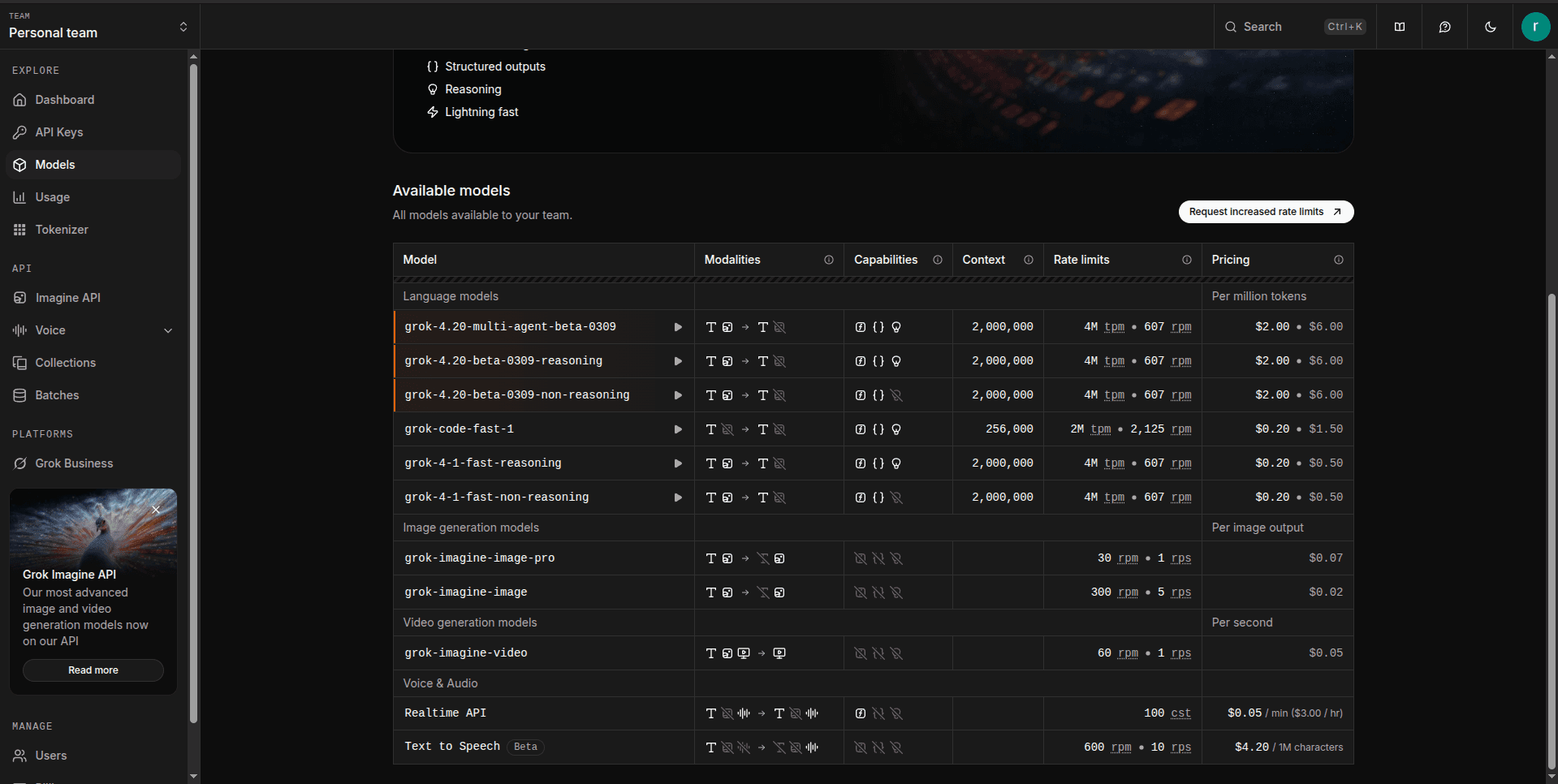
| xAI | Grok models from xAI |
| Mistral | Mistral Large, Medium, Small, and open-source models |
| Cohere | Command R+, Command R, and other Cohere models |
| DeepSeek | DeepSeek reasoning and coding models |
| DeepInfra | Hosted open-source models with fast inference |
| Cerebras | High-speed inference for open-source models |
| Together AI | Open-source model hosting and fine-tuning |
| Fireworks | Fast inference for open-source models |
| Ollama | Self-hosted local models running on your own hardware |
Setting Up a Provider
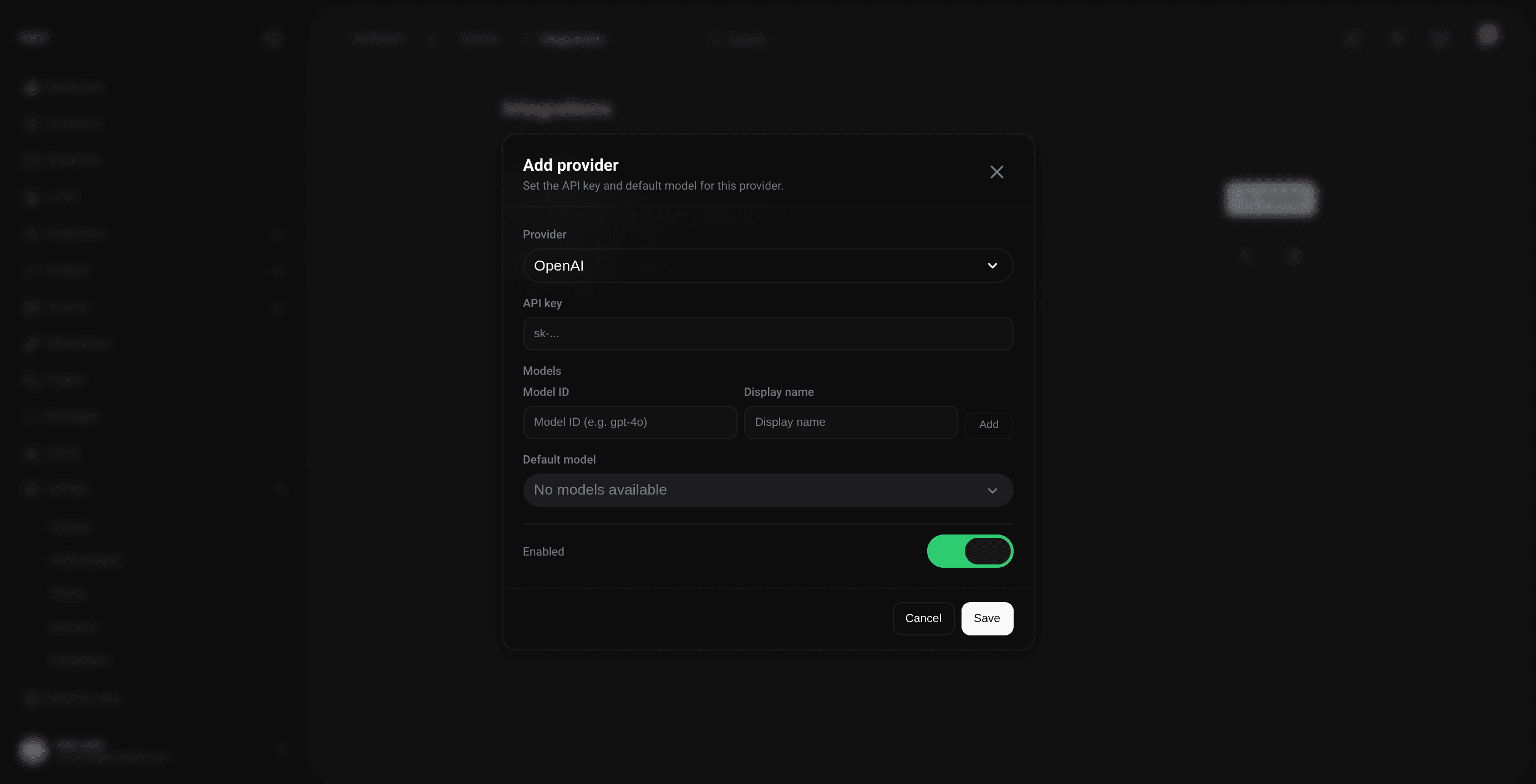
Before anyone can use Volt AI, the team needs at least one provider configured in the team integrations area.
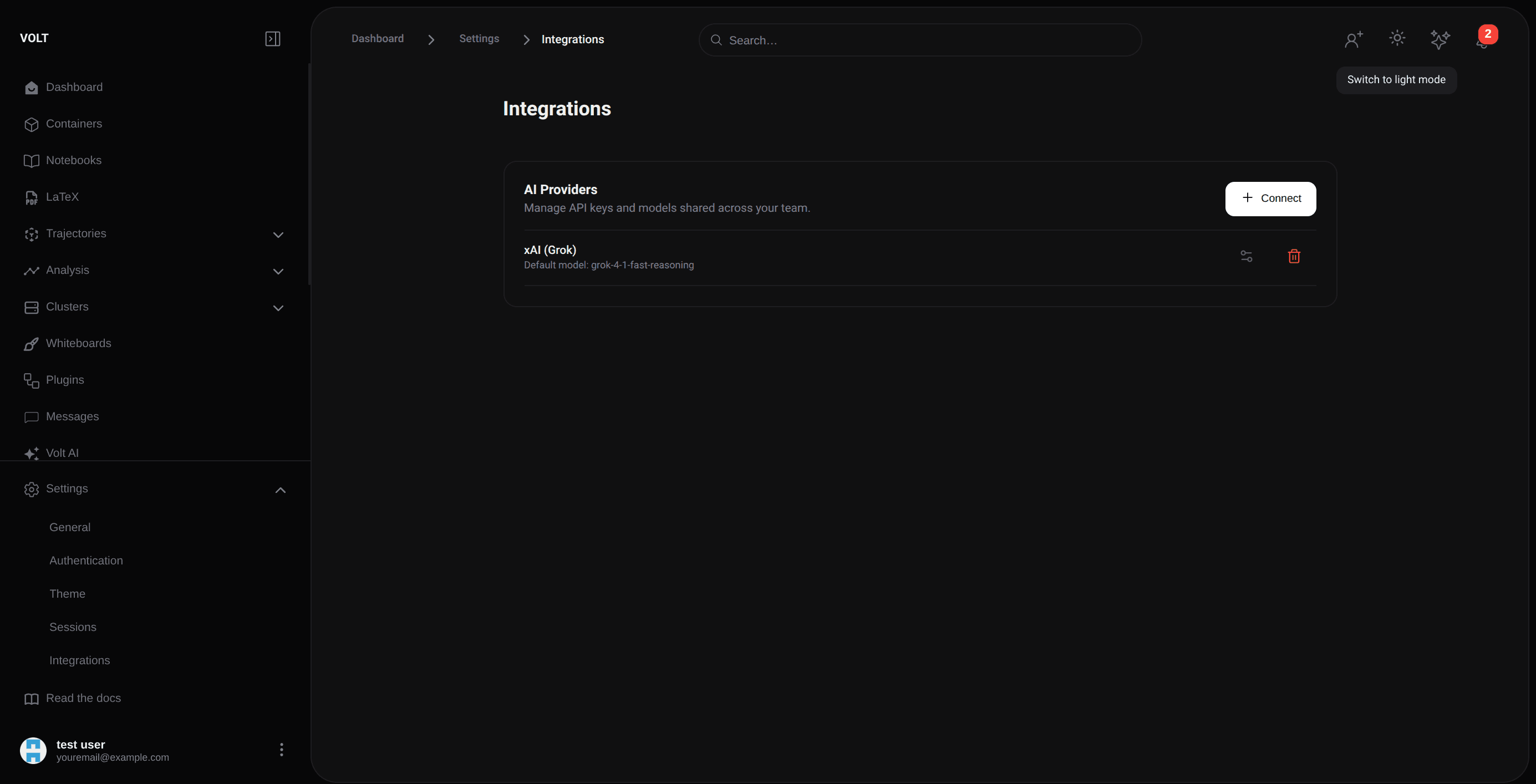
Click Add Provider, choose a name that makes sense for the team, and enter the API key for the service you want to use.

API keys are encrypted before being stored. Each team manages its own keys, and those keys do not spill across workspaces.
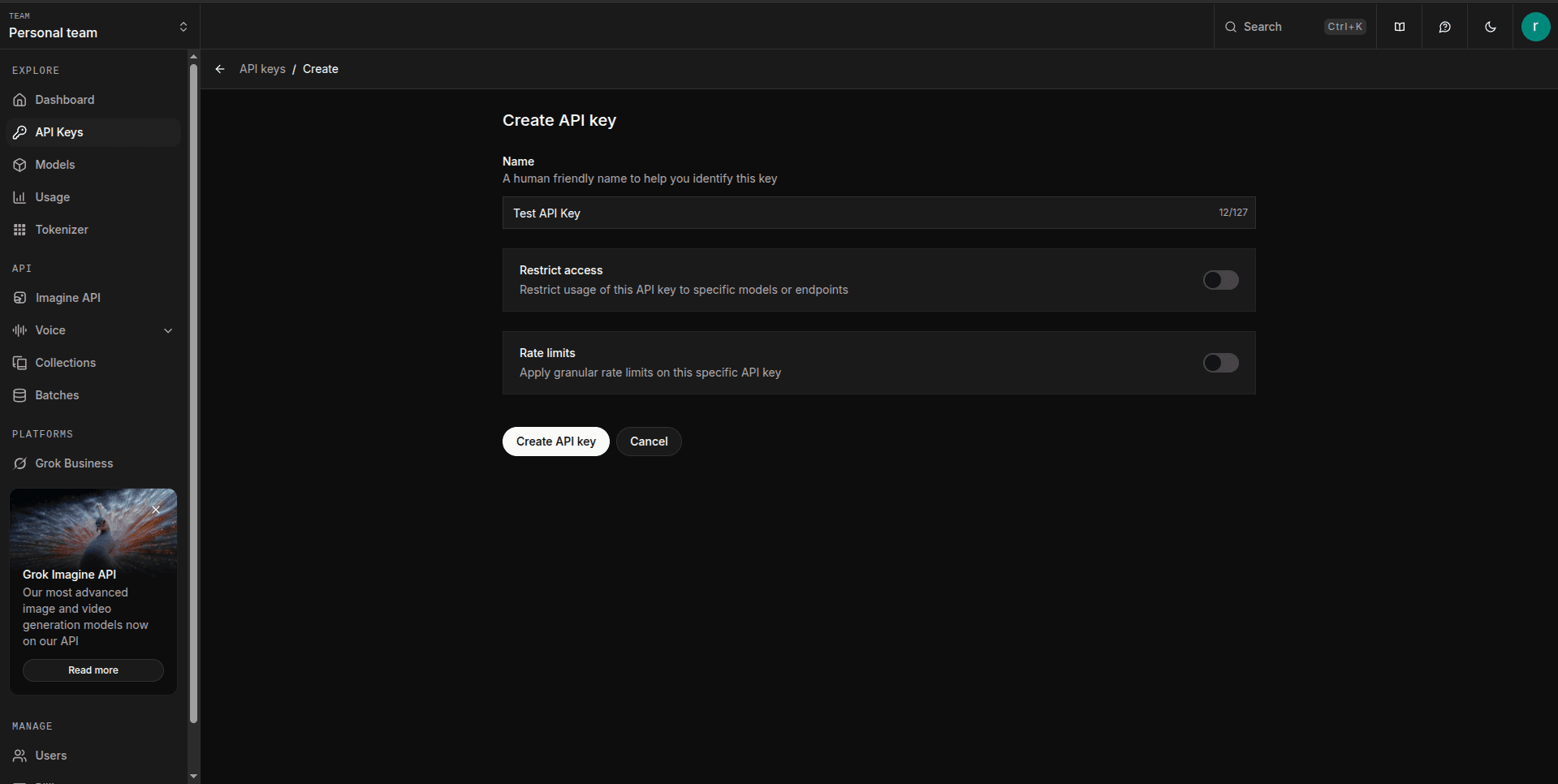
Getting an API Key
Each provider has its own developer console. For hosted models, this usually means creating a key in the provider dashboard. For self-hosted setups like Ollama, it means pointing Volt AI at the right base URL and enabling the models you want the team to use.

Selecting Models
After a provider is added, you can choose which models should be available to the team. Only enabled models show up in the Volt AI interface, which makes it easier to keep the workspace focused on the models you actually want people to use.

Chat Interface
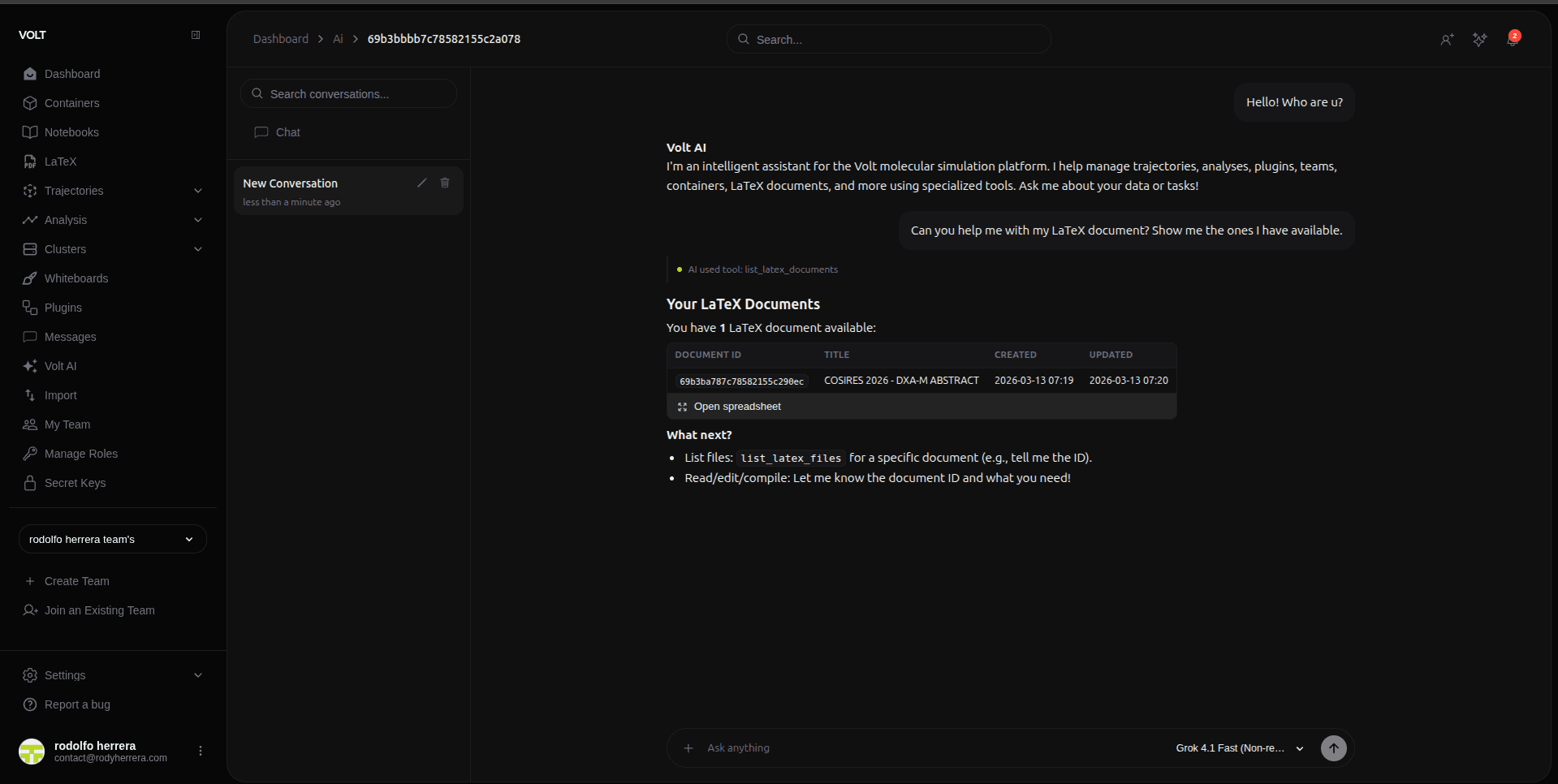
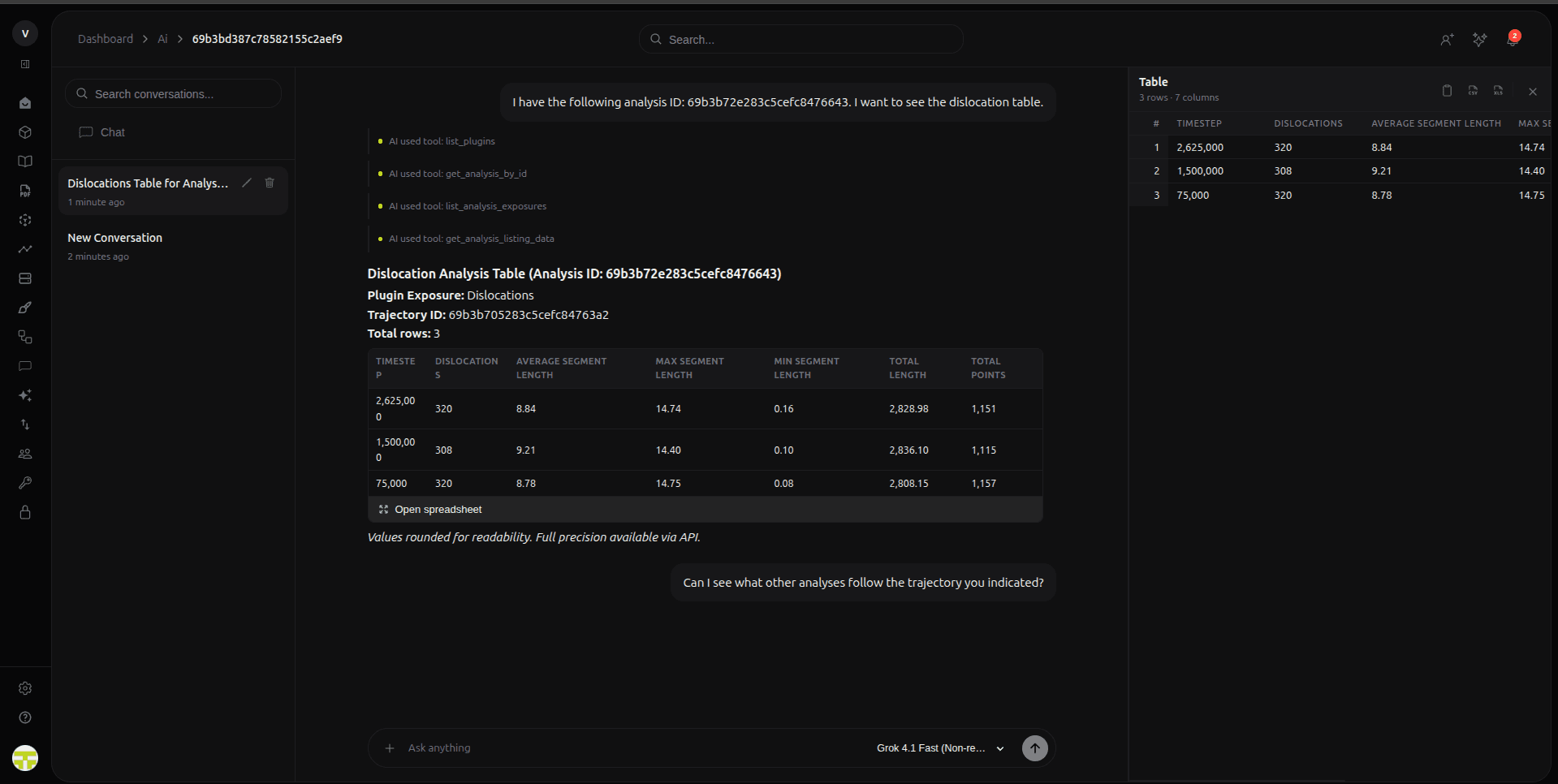
The chat experience is persistent and streamed in real time. Conversations are saved, responses arrive incrementally, and the same assistant can follow you across multiple tasks inside the workspace.

Because Volt AI is wired into the rest of the platform, a conversation can move naturally from "show me the trajectories in this team" to "run this analysis" to "help me rewrite the LaTeX section that explains the result." That continuity is the real feature.

Available Tools
Volt AI has access to 71 tools organized across 8 categories. Some are read-oriented, some modify workspace resources, and some trigger operational actions like analysis execution or container management.
Some tools require explicit approval before execution, especially when the action creates, deletes, or changes something important in the workspace.
LaTeX Documents (11 tools)
| Tool | Description |
|---|---|
compile_latex_document | Compile a LaTeX document and return the compilation log |
create_latex_file | Create a new file in a LaTeX document |
edit_latex_file | Edit an existing LaTeX file's content |
fix_latex_errors | Compile, parse errors from the log, and return structured error context |
generate_bibtex_entry | Generate a BibTeX bibliography entry |
generate_latex_figure | Generate a LaTeX figure environment block |
generate_latex_table | Generate LaTeX table code from a description or structured data |
list_latex_assets | List all assets (images, PDFs) in a LaTeX document |
list_latex_documents | List all LaTeX documents in the current team |
list_latex_files | List all files in a LaTeX document |
read_latex_file | Read the content of a specific LaTeX file |
Trajectories & Analysis (11 tools)
| Tool | Description |
|---|---|
list_trajectories | List all trajectories with status, frame count, and dates |
get_trajectory_by_id | Get detailed information about a specific trajectory |
count_trajectories | Count trajectories available for the team |
update_trajectory | Update a trajectory |
delete_trajectory | Delete a trajectory |
create_analysis | Create a new analysis |
get_analysis_by_id | Get detailed information about a specific analysis |
list_analyses_by_trajectory | List analyses for a specific trajectory |
delete_analysis | Delete an analysis |
run_analysis | Execute a plugin analysis on a trajectory |
get_team_metrics | Get trajectory and analysis metrics for the team |
Plugin Analysis (8 tools)
| Tool | Description |
|---|---|
list_plugins | List plugins available in the team |
get_plugin_by_id | Get detailed information about a specific plugin |
update_plugin | Update a plugin |
delete_plugin | Delete a plugin |
list_analysis_exposures | List all files (msgpack, charts, GLB models) for an analysis |
get_analysis_listing_data | Read tabular plugin analysis results for a specific exposure |
get_analysis_listing_summary | Get a statistical summary of numeric columns from plugin data |
get_analysis_chart | Retrieve a pre-generated chart image from object storage |
read_exposure_data | Read raw exposure data (msgpack) from object storage |
Containers (9 tools)
| Tool | Description |
|---|---|
list_containers | List all Docker containers in the team |
get_container_by_id | Get detailed information about a specific container |
create_container | Create a new Docker container |
update_container | Update a Docker container |
delete_container | Delete a Docker container |
get_container_processes | List running processes in a container |
get_container_stats | Get resource usage stats for a container |
list_container_files | List files in a container directory |
read_container_file | Read a file from a container |
Team Management (13 tools)
| Tool | Description |
|---|---|
list_team_members | List all members with their roles |
update_team_member | Update a team member's role |
remove_team_member | Remove a team member |
list_team_roles | List all roles in the team |
create_team_role | Create a new role |
update_team_role | Update a team role |
delete_team_role | Delete a team role |
send_team_invitation | Send a team invitation |
list_pending_invitations | List pending team invitations |
delete_team_invitation | Cancel a pending invitation |
list_secret_keys | List API secret keys for the team |
create_secret_key | Create a new API secret key |
delete_secret_key | Permanently delete an API secret key |
revoke_secret_key | Revoke an API secret key |
SSH Connections (4 tools)
| Tool | Description |
|---|---|
list_ssh_connections | List all SSH connections configured for the team |
create_ssh_connection | Create a new SSH connection |
update_ssh_connection | Update an SSH connection |
delete_ssh_connection | Delete an SSH connection |
AI Conversations (3 tools)
| Tool | Description |
|---|---|
list_conversations | List all AI conversations for the current user |
update_conversation | Update an AI conversation title |
delete_conversation | Delete an AI conversation |
Scripting & Simulation (2 tools)
| Tool | Description |
|---|---|
list_scripting_notebooks | List all Jupyter scripting notebooks in the team |
list_simulation_cells | List all simulation cells in the team |
What Volt AI is especially good at
In day-to-day use, Volt AI is most helpful when you want to move quickly across modules without manually opening each one in turn. It works well for workspace discovery, first-pass analysis orchestration, LaTeX assistance, and repetitive admin tasks that already have clean tool coverage.
It is also one of the clearest places where the team boundary in VOLT matters. The same assistant behaves differently depending on the team you are in, the providers that team has configured, and the permissions the current user has.
Task: Set up an AI provider
- Go to the Volt AI section from the sidebar.
- Click Add Provider.
- Enter a name for the provider, such as
OpenAI Production. - Paste the API key into the key field.
- Select the models you want to enable for the team.
- Save the provider configuration.
Expected outcome: The provider appears in the provider list, and its enabled models become available in Volt AI surfaces across the workspace.
Task: Run an analysis using natural language
- Open a Volt AI conversation.
- Type a request such as
Run Coordination Analysis on trajectory X. - Volt AI resolves the trajectory and plugin, then prepares the tool call.
- Review the proposed action and click Approve if confirmation is required.
- Wait for the analysis to appear in the normal jobs and analysis flow.
Expected outcome: The run starts through the same underlying analysis system used elsewhere in VOLT, and the results become available from the trajectory and analysis views.
If Volt AI surfaces are visible but not useful, the most common causes are simple: no configured provider, an invalid key, or no enabled models for the current team.