Getting Started
Account creation, team setup, and first cluster connection.
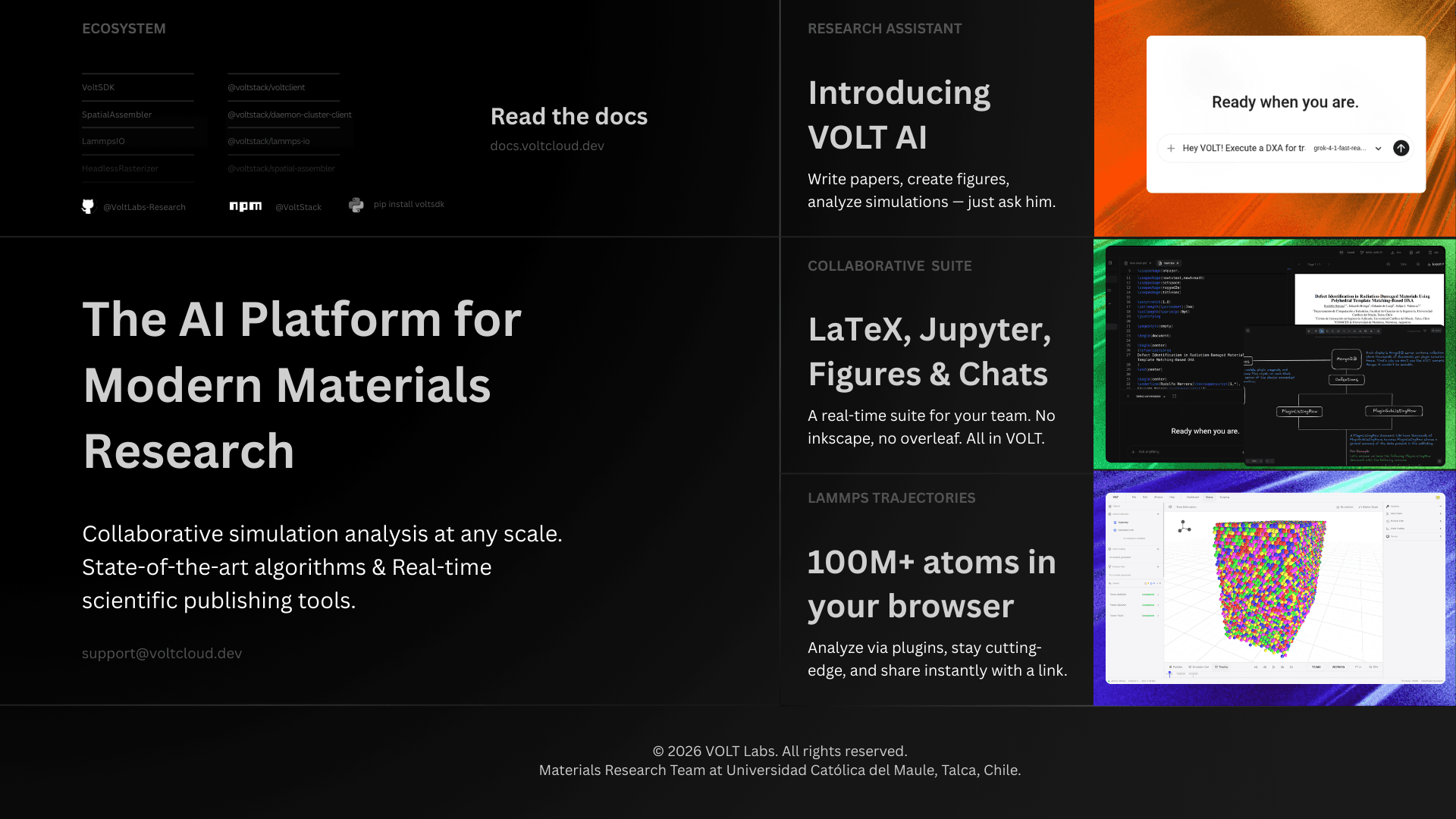
VOLT is a collaborative platform for materials science teams working with LAMMPS simulations. It integrates trajectory processing, analysis, notebooks, LaTeX writing, containers, team coordination, and infrastructure in a single workspace.
Core concepts
| Concept | Meaning |
|---|---|
| Team | A workspace owning trajectories, clusters, notebooks, containers, LaTeX documents, and permissions. |
| Cluster | A machine connected to a team. Runs the daemon and the local services that store data and execute heavy work. |
| Trajectory | A processed simulation dataset. VOLT extracts metadata, simulation cells, frame dumps, GLB models, and previews from the upload. |
| Plugin | A node-based analysis workflow that executes scientific binaries on the cluster. |
| Exposure | A result produced by an analysis, typically as Apache Parquet data, charts, or derived 3D outputs. |
| Scene artifact | A 3D layer in the viewer, such as a color mapping, a filtered subset, or a plugin-generated model. |
System layout
VOLT does not centralize simulation files on the application server. The server coordinates users, teams, auth, APIs, and real-time updates. The daemon on the team cluster handles processing, file access, notebook runtime, plugin execution, previews, and storage. Adding compute or storage means adding or upgrading clusters.
Create your VoltID
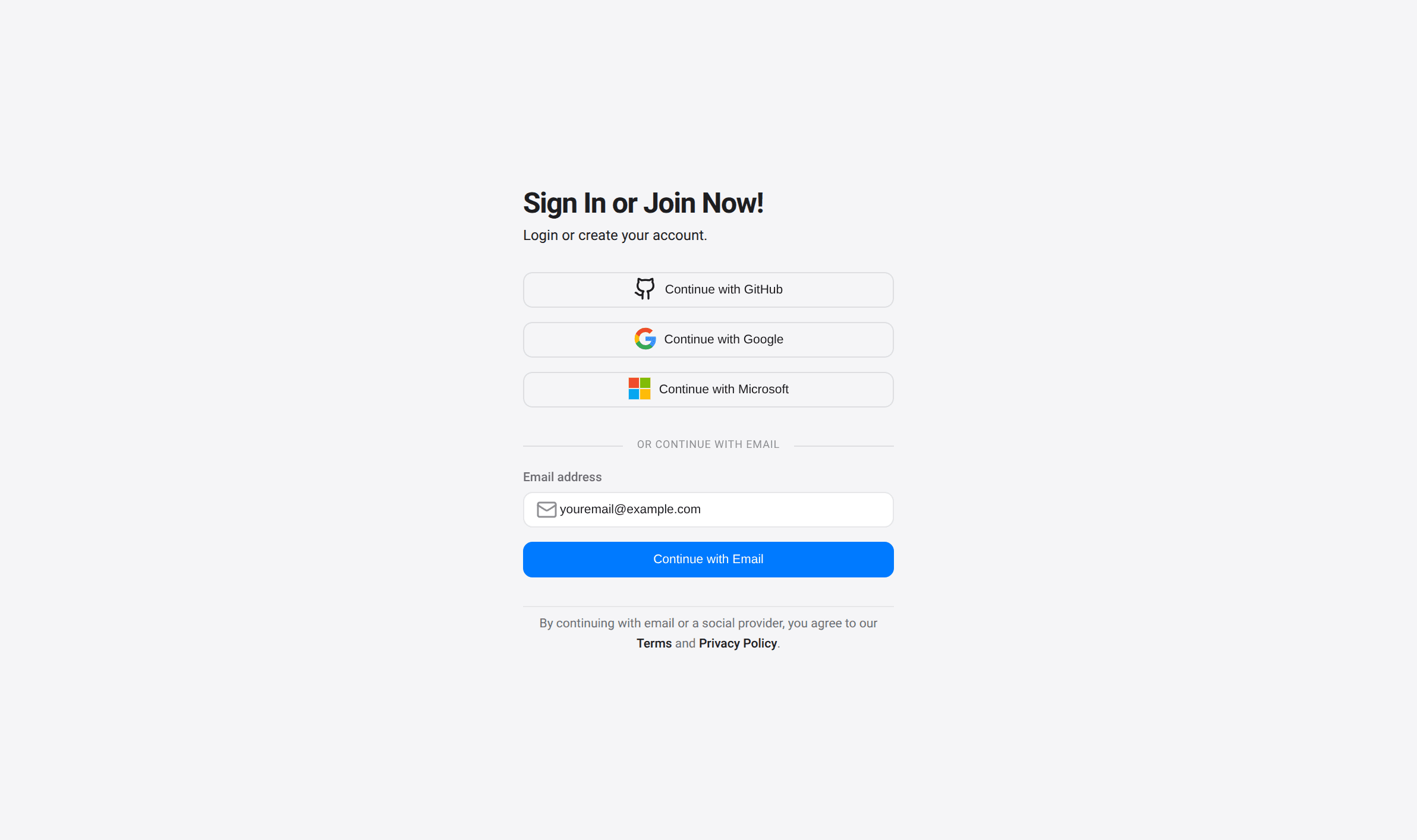
Account creation and sign-in happen at app.voltcloud.dev/auth/sign-in.
Supported sign-in methods: Google, GitHub, Microsoft, and email. The email flow signs in existing accounts and creates new ones automatically.
Your first team
After signing in, VOLT prompts for team creation. Trajectories, clusters, analyses, chats, notebooks, roles, and AI integrations are all team-scoped.
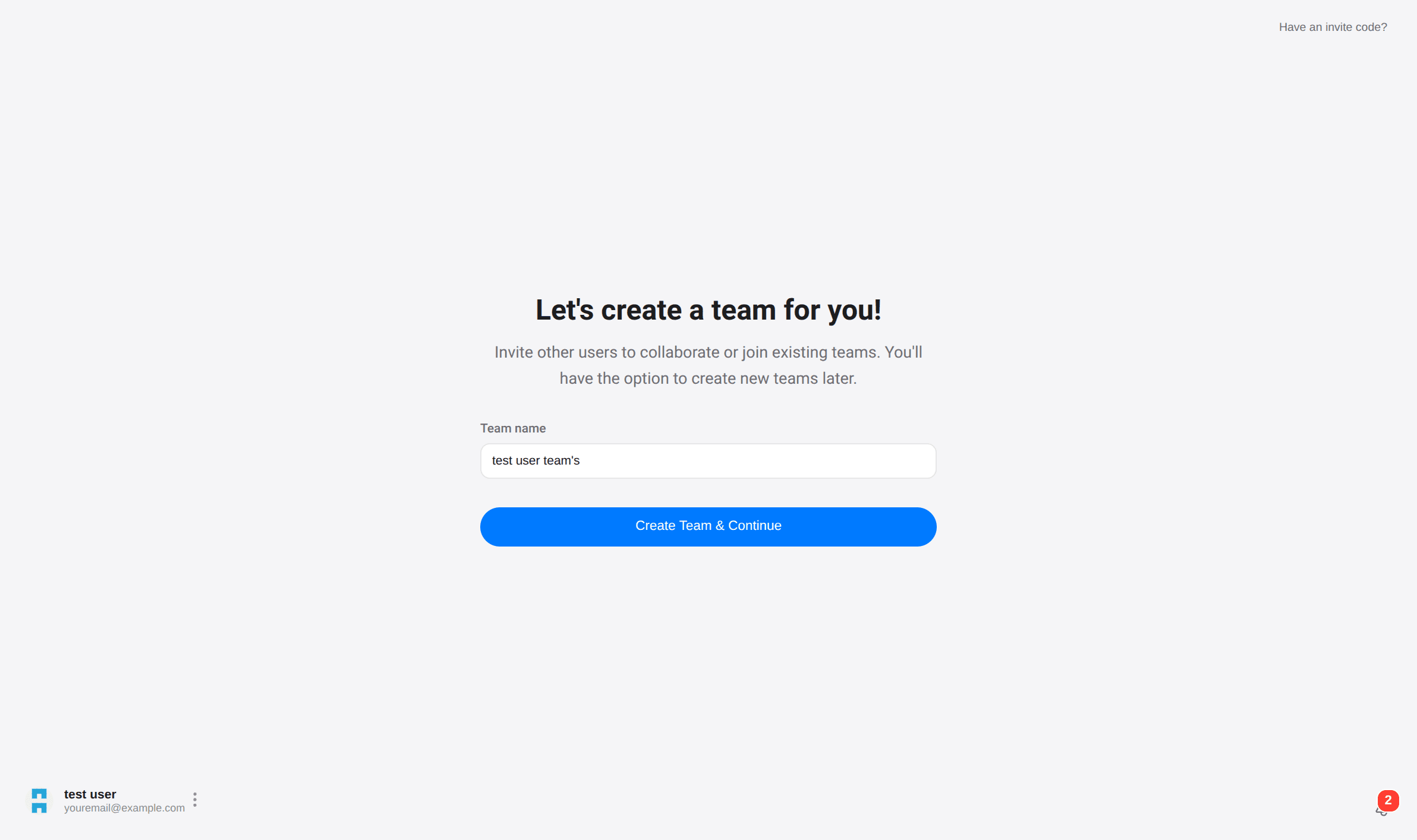
Teams can be renamed, additional teams created for other projects, and collaborators invited.
Connect your first cluster
Processing trajectories and running analyses requires at least one connected cluster. A cluster can be a laptop, a lab workstation, or a dedicated Linux server.
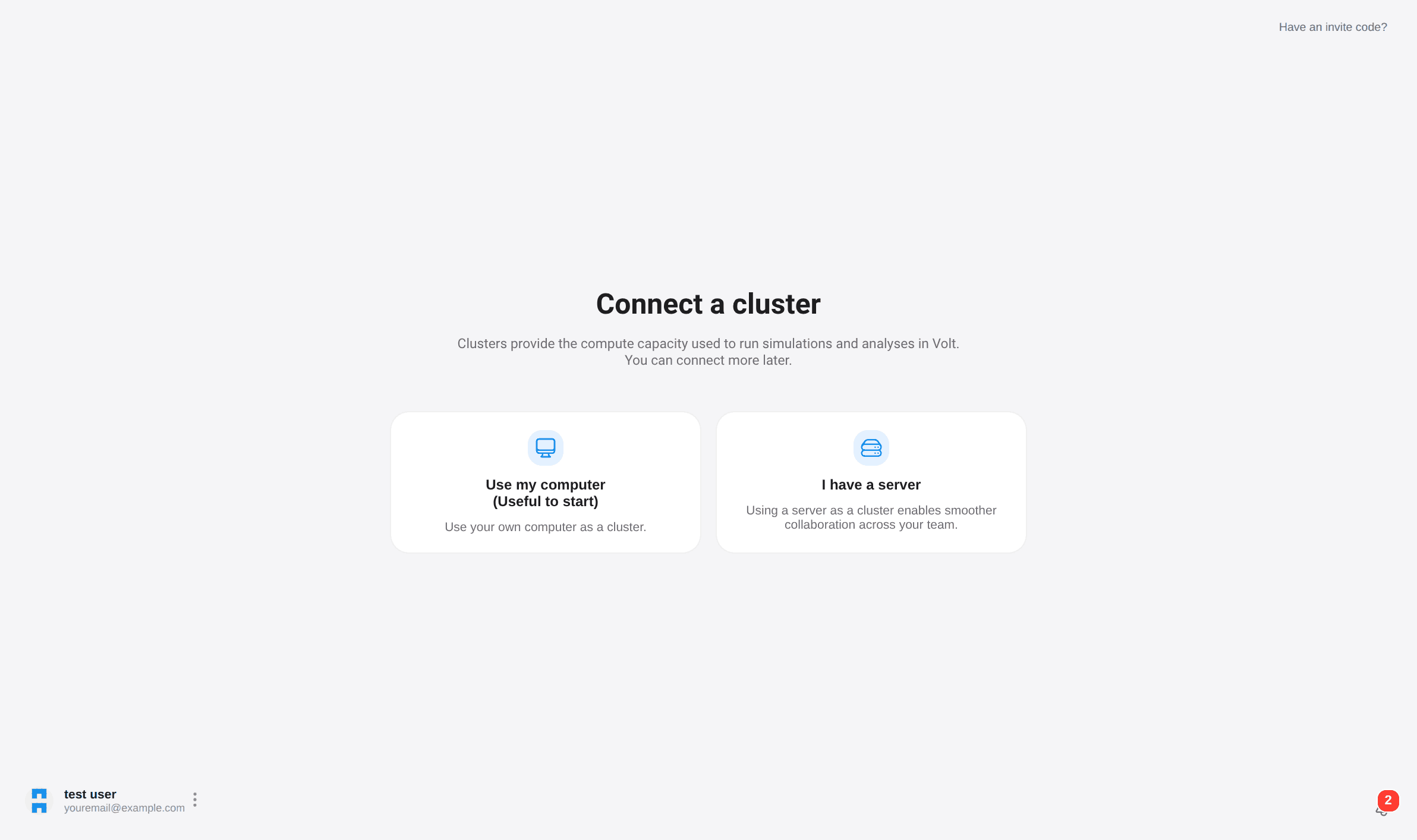
Choose a cluster type, assign a name, and copy the install command.
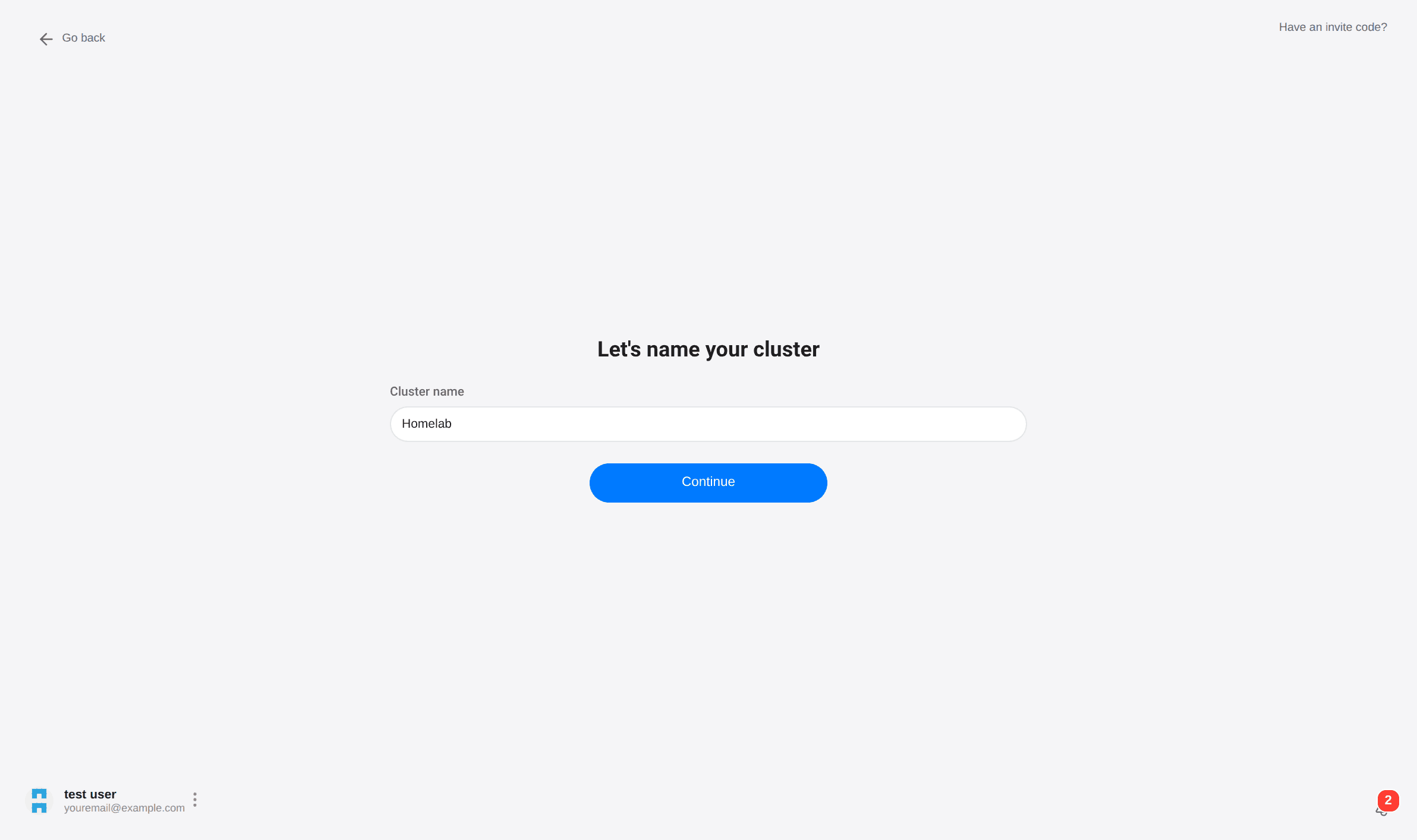
Run the command on the target machine. The installer bootstraps the daemon and local services and enrolls the machine into the workspace.
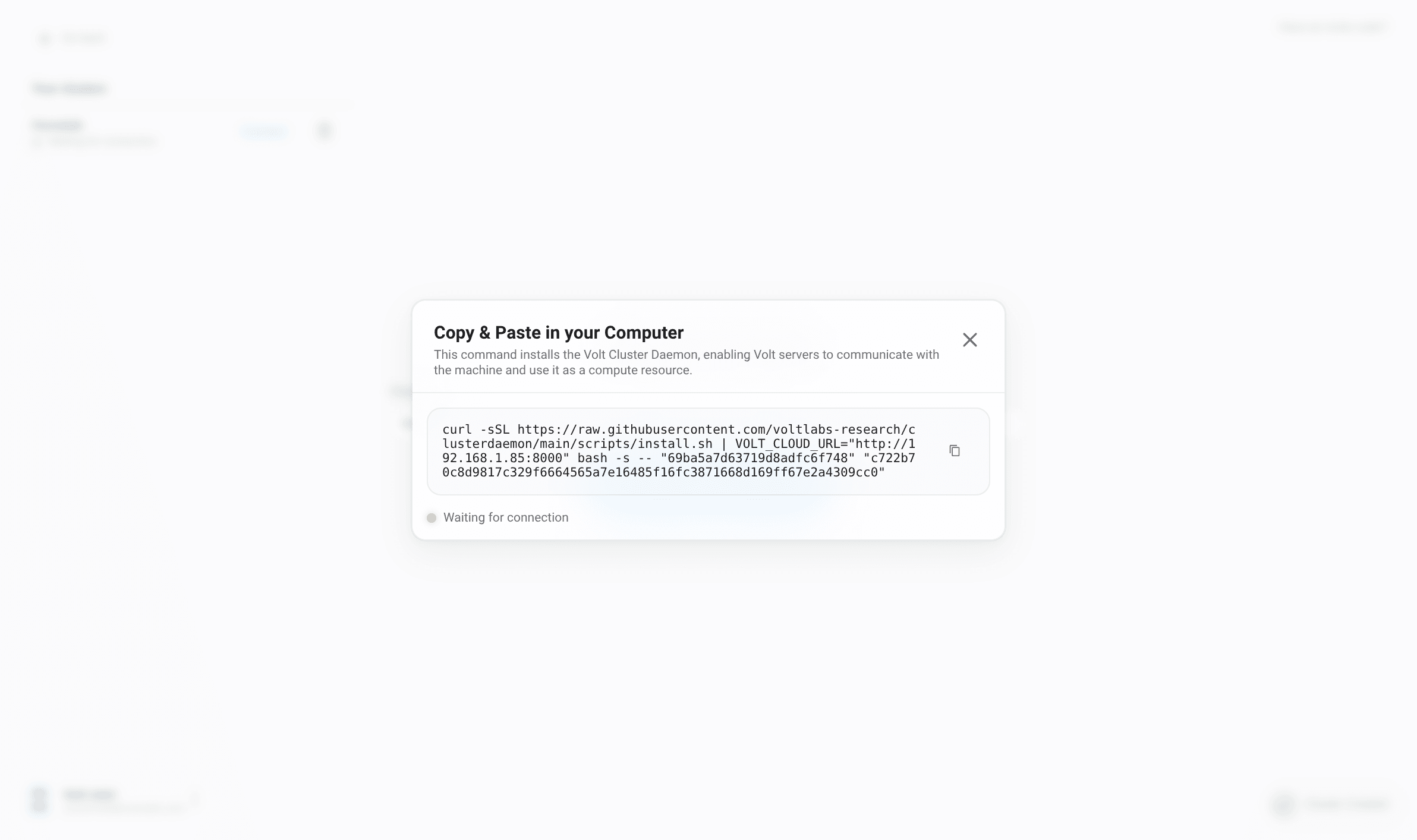
On Windows, run the terminal with administrator privileges. The installer may install Docker before the cluster connects.
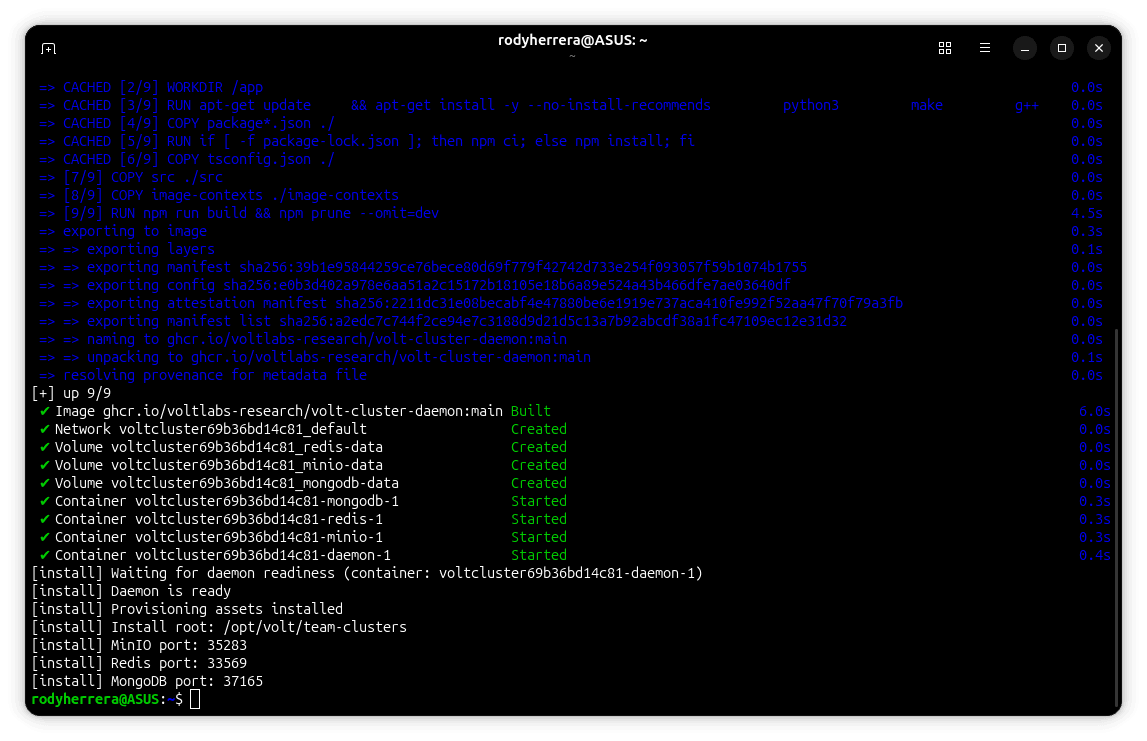
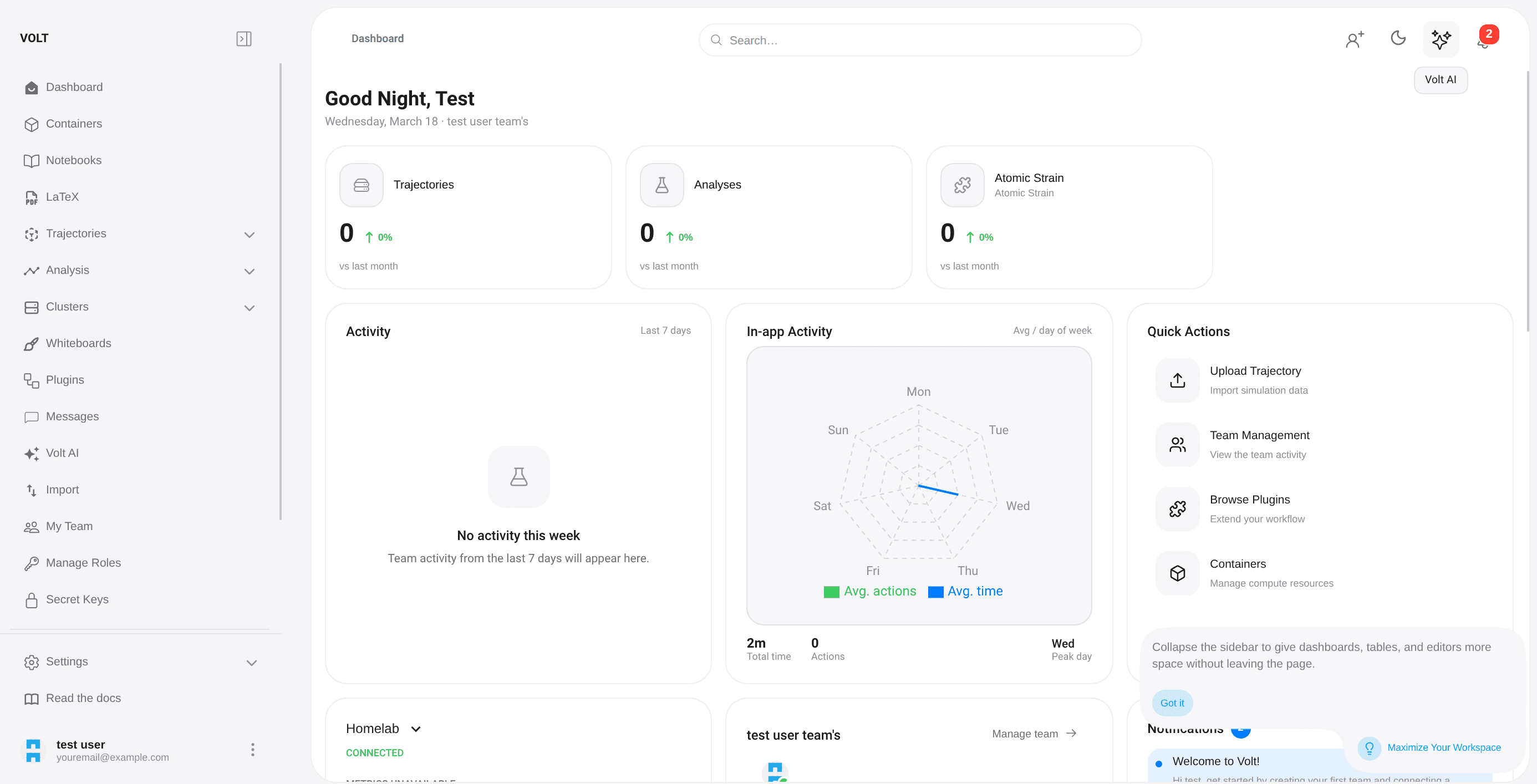
Once the daemon starts sending heartbeats, the cluster moves from waiting to connected.
Next steps
With a team and cluster connected, the typical workflow is:
- upload a trajectory,
- wait for parsing and preprocessing,
- open the viewer and inspect frames,
- run analysis plugins,
- explore results as listings, charts, or 3D artifacts,
- move into notebooks, LaTeX, or AI-assisted workflows.
A Volt desktop launcher is also available — an Electron application that downloads the stack sources from the project's GitHub releases and runs the full local stack (MongoDB, Redis, MinIO, volt-server, volt-client) via Docker Compose on your machine. Installers, built with electron-builder, are available for macOS (dmg), Windows (NSIS exe), and Linux (AppImage) from the GitHub releases page.