VOLT
Modules

Containers

Run Docker workloads on team clusters with terminals, files, ports, and optional remote desktop.

TL;DR -- Containers let your team run custom services and environments on connected clusters without stepping outside VOLT. You can create them from templates or custom images, then work with terminals, files, stats, exposed ports, and VNC-style desktop sessions.

Overview

The Containers module is where VOLT stops being only a simulation workspace and starts acting like an application platform for the team. If you need a custom runtime, a lightweight service, a notebook-adjacent helper, or a desktop-enabled environment, this is where it lives.

Containers Overview

Containers run on team clusters, so they inherit the strengths and limits of the hardware you have connected. That means the module works best when you think of it as a layer on top of cluster capacity, not a separate pool of compute.

Listing and day-to-day management

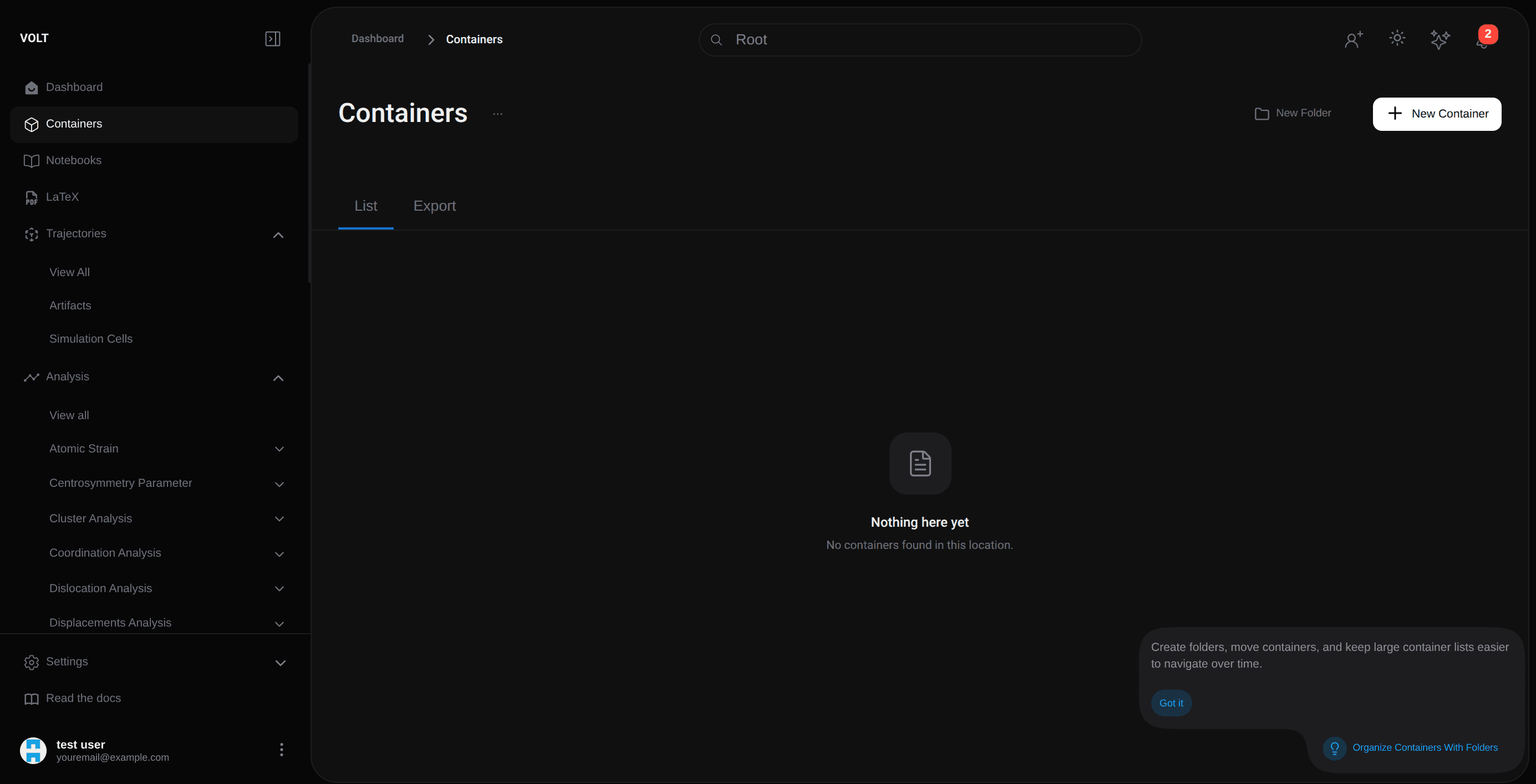
The listing gives you the current fleet view: which containers exist, which are running, and which one you may want to open next.

Container Listing

From there, the usual lifecycle is straightforward. You create a container, adjust its resources and ports, start using it, and come back later for logs, processes, files, or updates.

Creating a container

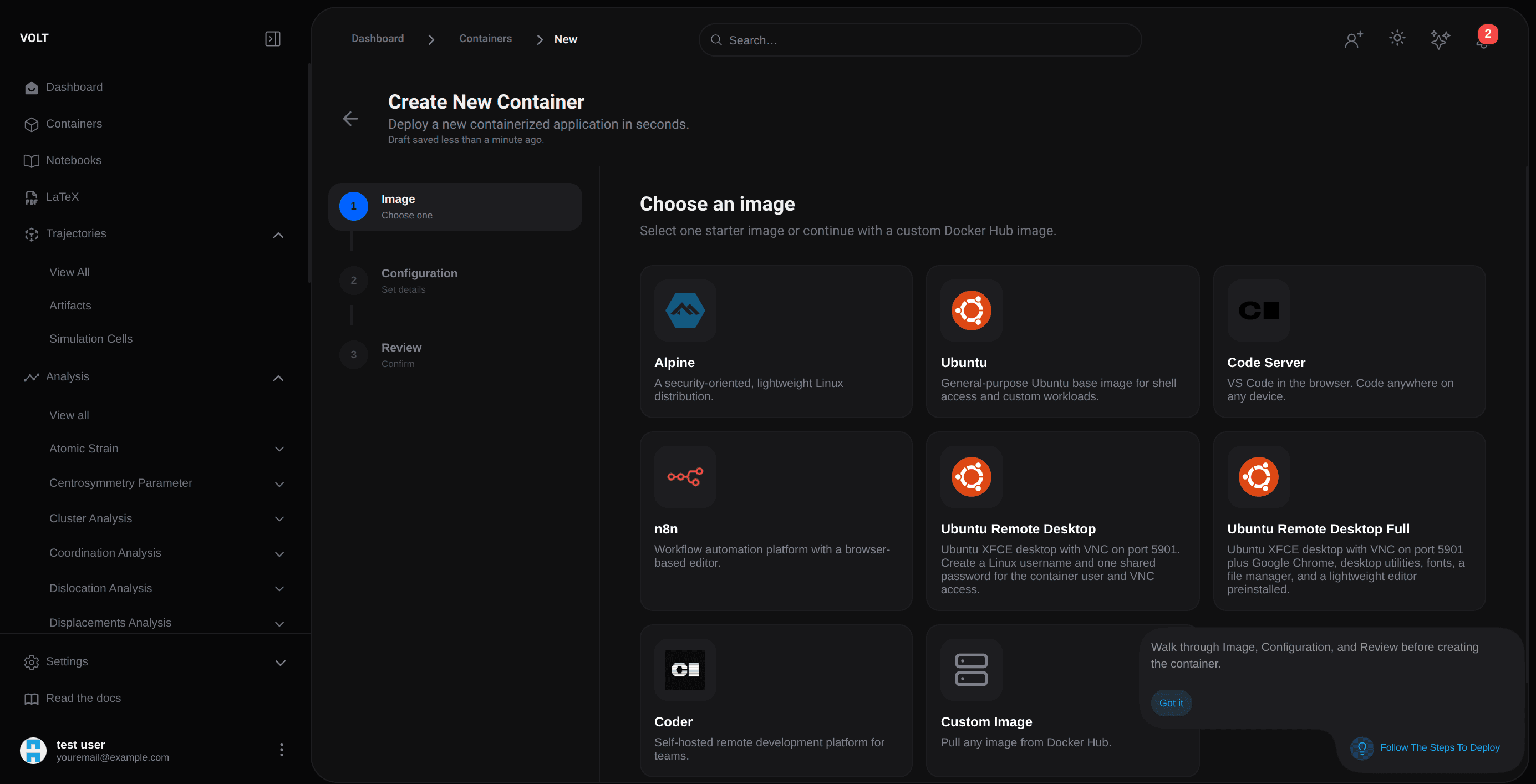
The creation flow is a guided wizard because there is more going on than just picking an image.

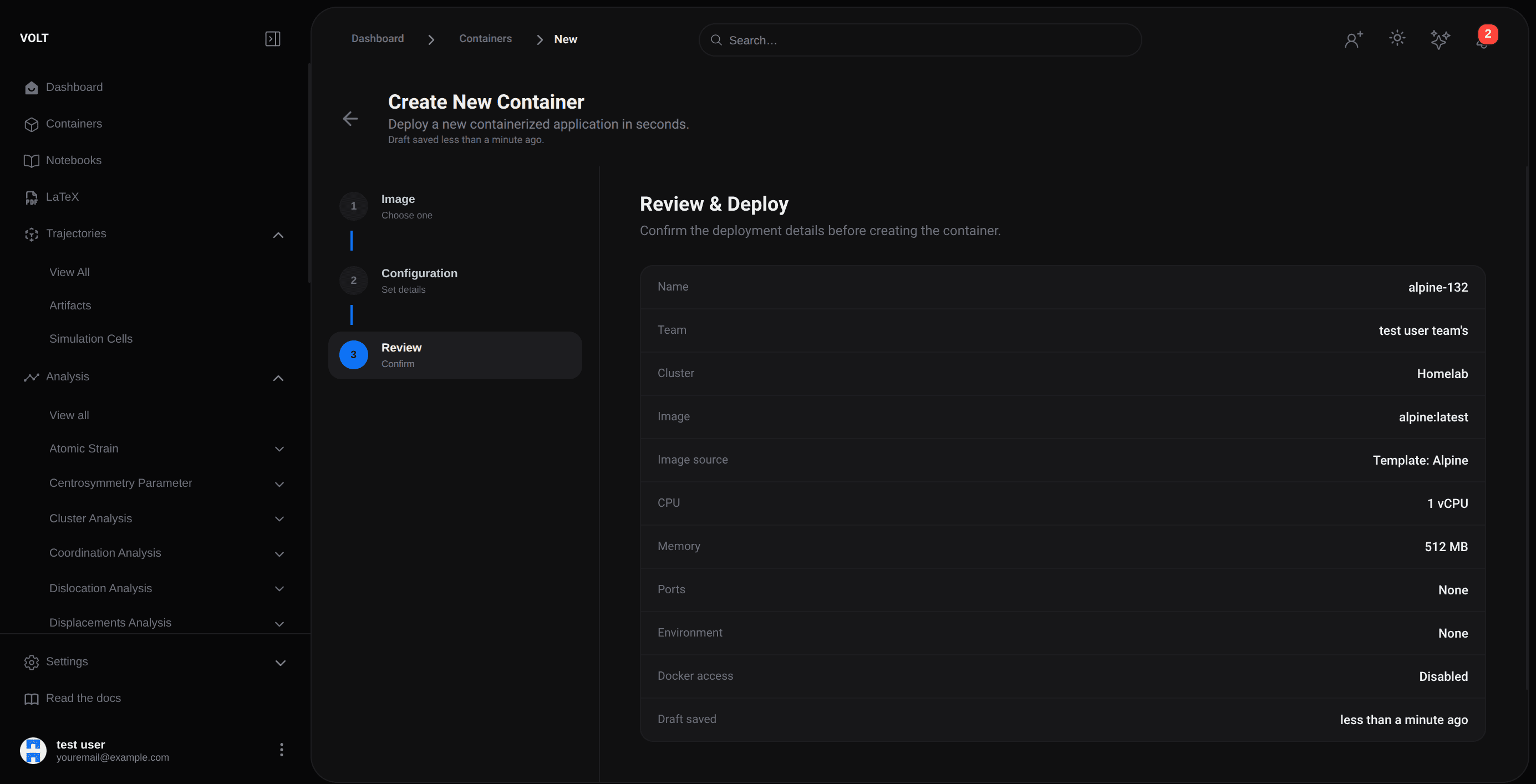
You choose the team cluster, define CPU and memory limits, configure environment variables, decide how ports should be exposed, and optionally enable extra capabilities such as remote desktop support.

Create Container

Review Configuration

If you do not provide a command and choose not to use the image's own command, VOLT falls back to keeping the container alive with a simple idle command so you can still enter it later.

What you can do after deployment

Once a container exists, the module gives you several ways to interact with it depending on the workload.

  • Terminal access for shell-based work directly in the browser.
  • File access for browsing and reading container content.
  • Process and stats views for operational visibility.
  • Port access for services that need to be opened safely through the platform.
  • Remote desktop for GUI-capable images that expose the expected VNC/XRDP setup.

Port proxying and accessible services

One of the more useful ideas here is that VOLT does not just show you port mappings. It can create controlled sessions that proxy access to a containerized service through the team cluster and the product runtime.

That makes containers practical for dashboards, internal tools, and notebook-adjacent services that need a browser entry point without asking the user to manage direct host networking manually.

Remote desktop support

For containers built with a desktop environment, VOLT can open a remote desktop session in the browser. In practice, that is a capability rather than a default. The image and port setup have to support it, and the container needs to be running before the UI exposes the session entry point.

When containers are a good fit

Containers are especially useful when you want to keep a support tool close to the scientific workflow. For example, you might run a small service next to your trajectories, a custom environment for a team utility, or a desktop-oriented helper that does not belong inside a notebook.

Containers, notebooks, and plugin execution all depend on the same cluster foundation. If a cluster is low on memory or disconnected, the symptoms often show up here first.

On this page